PassCat is a password manager that stores your passwords
encrypted on your own device, ready to copy with a single tap.
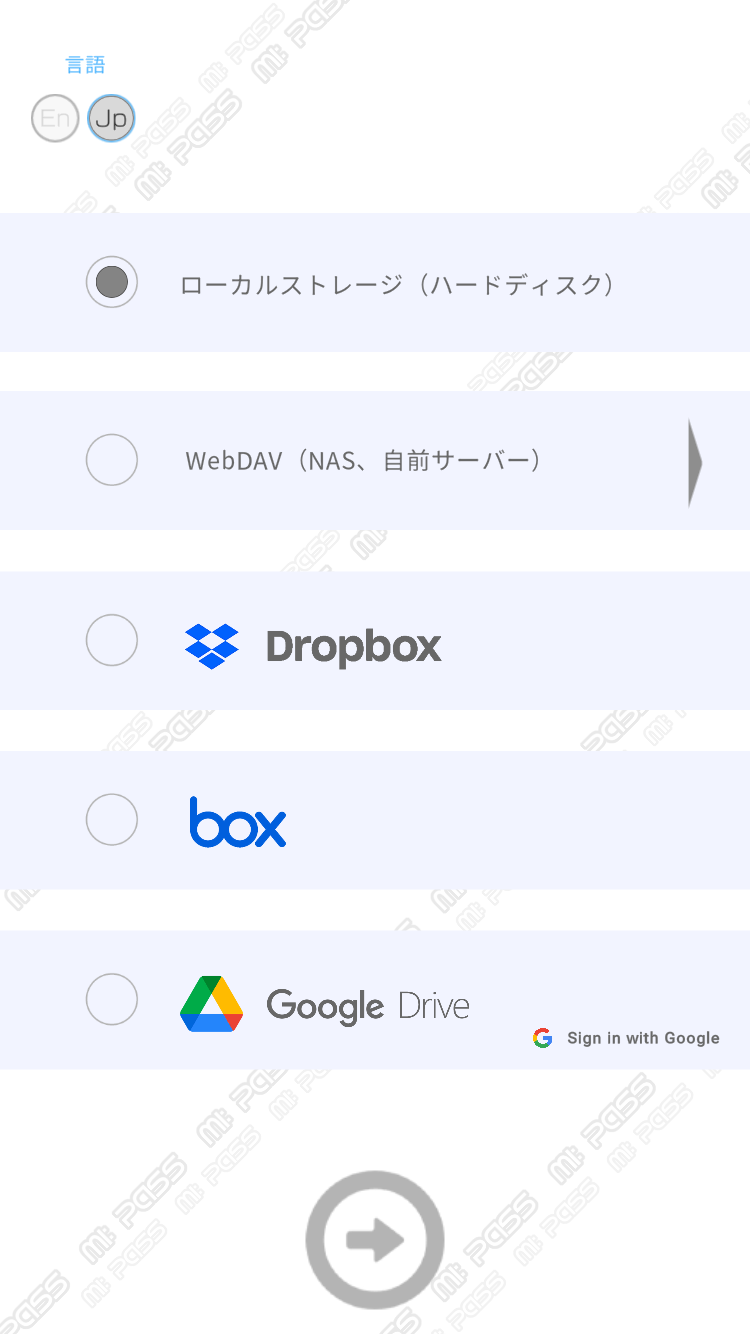
Optionally, it can sync with your own cloud storage
(Google Drive / Dropbox / Box / WebDAV) so you can use the same data on multiple devices.
We do not operate any server that stores your passwords.
Your data lives only on your device and, if you choose, in your own cloud account.
On first launch, enter your email address; a 6-digit one-time code will be sent to you.
Enter it within 60 seconds to verify.
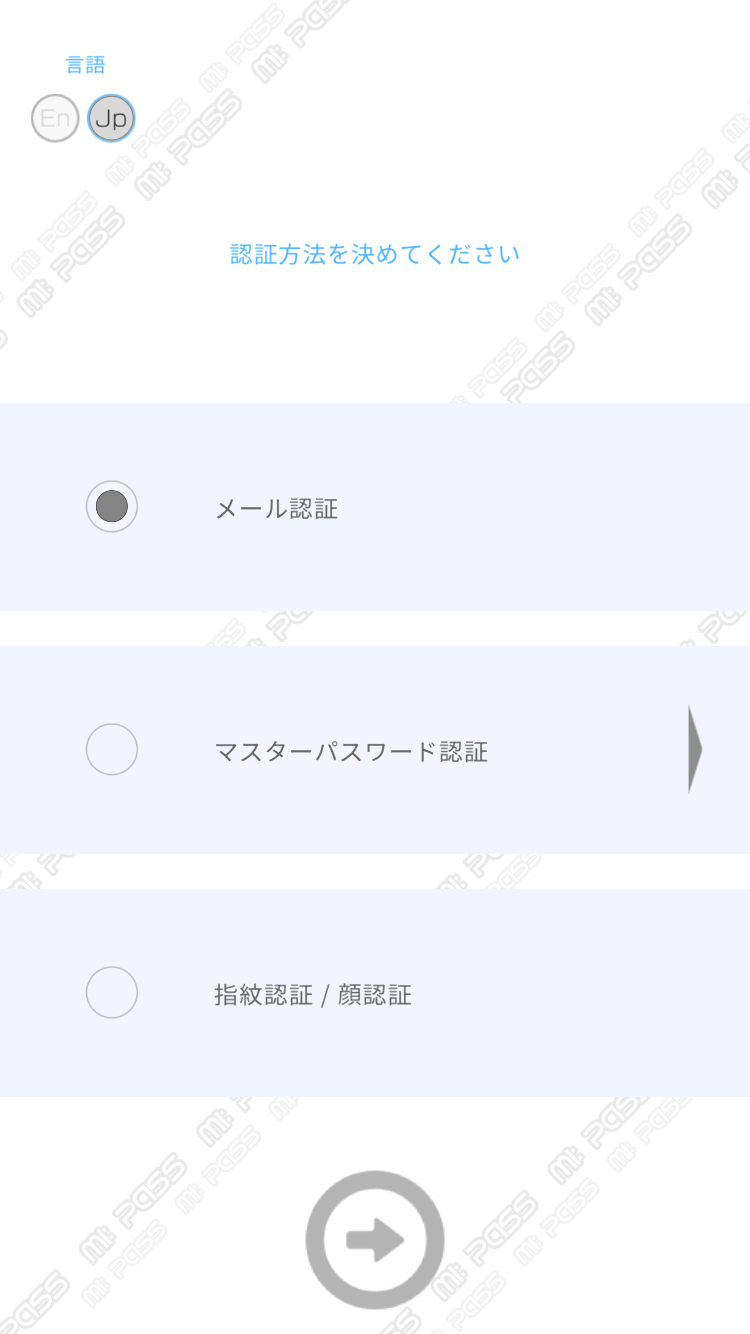
Choose a sign-in method:
Email verification — a one-time code on every launch. Reliable, slightly more effort.
Offline password — a master password for this app. Works without a network connection.
Biometric (Android / iOS) — sign in with fingerprint or face recognition.
Set the auto sign-out timer (5 minutes to 12 hours) in Settings.
A shorter time is recommended if you often leave your device unattended.
Important: If you forget your offline password, we cannot recover it for you.
Keep it somewhere safe.
2. Adding entries
Open the entry editor from the list screen.
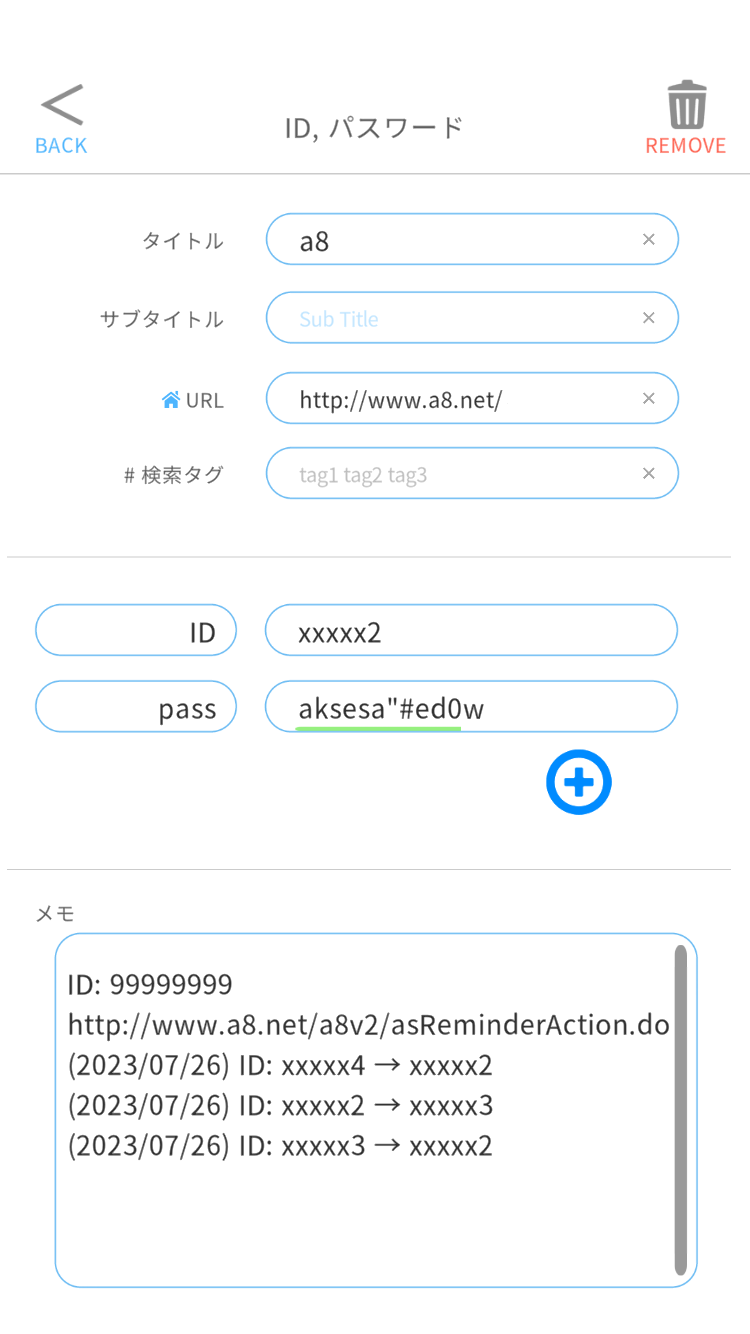
Enter a title (service name), and optionally a subtitle, URL and tags.
Each entry holds up to 5 name/value fields.
We recommend putting your username in the first field and
passwords in the following fields — the list screen's buttons are laid out with this in mind.
The memo field is free-form; a change history is recorded when you modify values.
3. Using entries
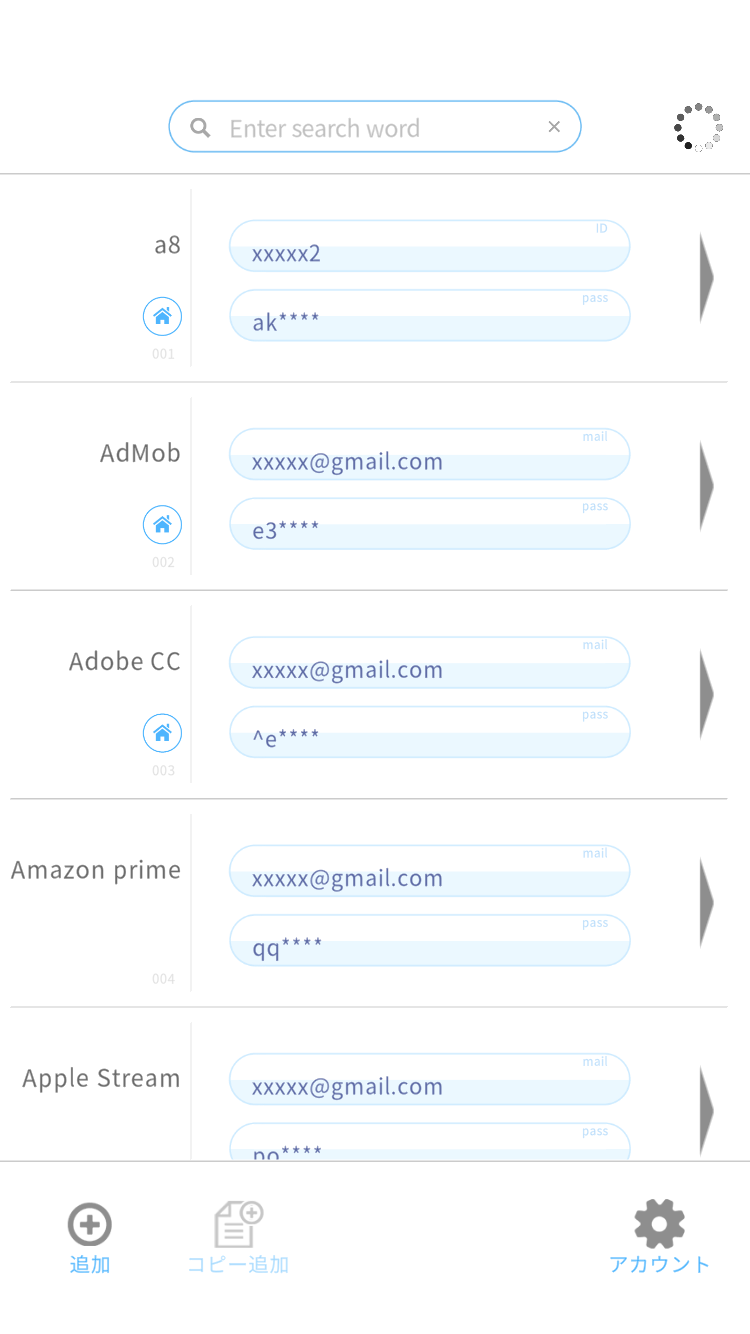
Find the service in the list; you can search by title or tag.
Tap the account button to copy your username and open the registered URL.
Tap a password button (masked as ******) to copy the password
to the clipboard, then paste it into the login form.
Copied passwords go to the system clipboard. After pasting, consider copying
something else to overwrite the clipboard for extra safety.
4. Cloud sync (optional)
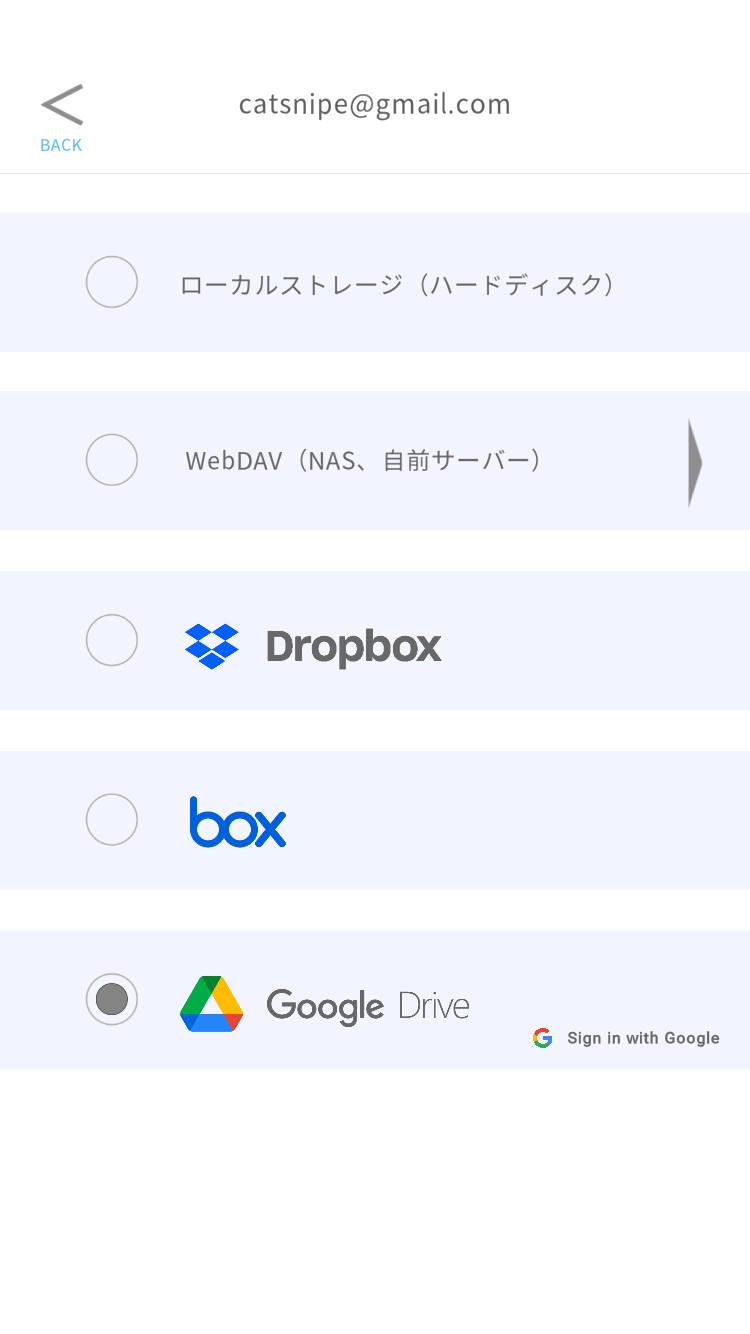
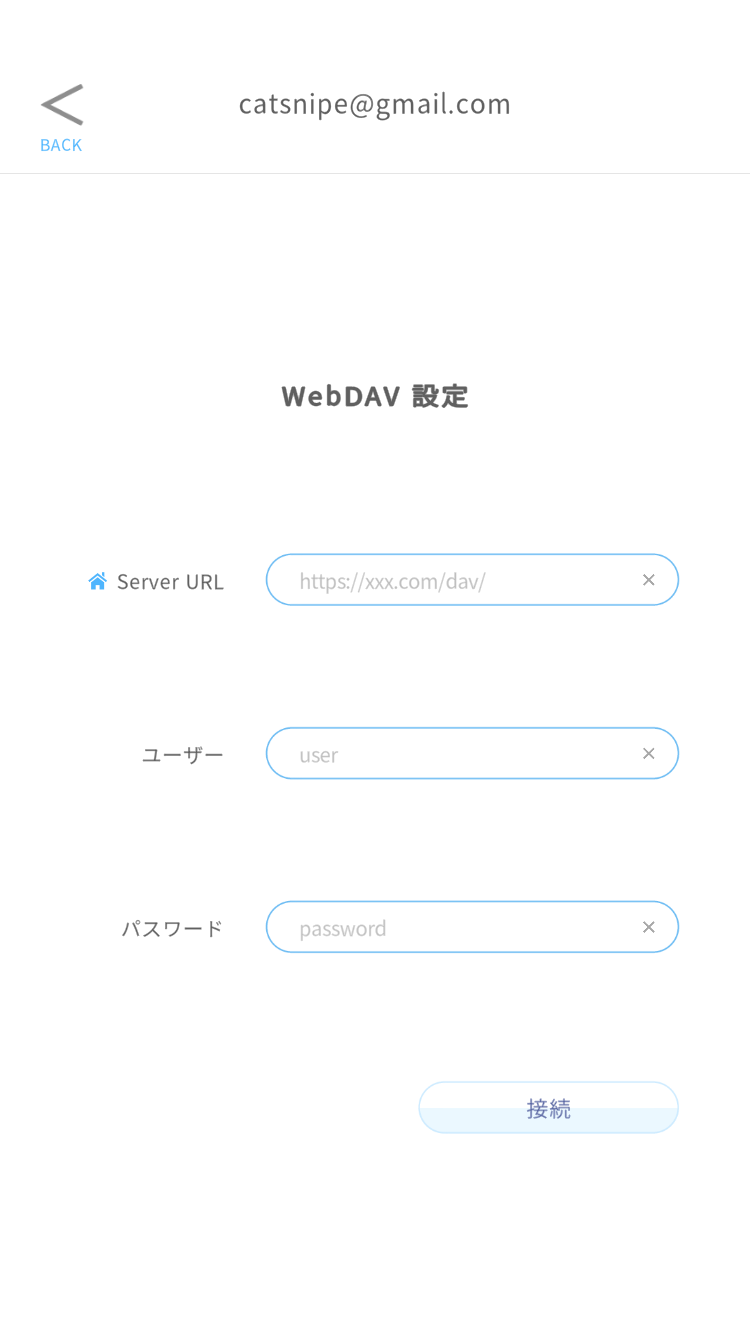
In Settings, choose a sync provider: Google Drive / Dropbox / Box / WebDAV.
Sign in with your own account when the provider's sign-in screen appears.
Changes are saved to your cloud automatically. Set up the same email address and the same
cloud on another device, and your data merges automatically across devices.
Features in Detail
Encrypted storage
Your data is stored on the device as an AES-encrypted file, and only this encrypted file
is ever uploaded to your cloud. Plain-text passwords are never sent over the network
or stored in the cloud.
Cloud sync and multi-device use
Sync always targets your own cloud account. When you edit on multiple devices,
entries are merged automatically, keeping the most recently updated version of each entry.
Even if you share one cloud account with family members, each PassCat user's file is
kept separate per registered email address, so data never gets mixed up.
Provider
What the app can access
Google Drive
Only files created by PassCat (drive.file scope)
Dropbox
Only a dedicated app folder (Apps/PassCat/mipass)
Box
The mipass folder at the root of your account
WebDAV
The mipass folder under the server URL you specify
Note for Box users: Due to how Box works, the app is granted read/write
access to files across your account. PassCat only ever touches its own save file, but if you
prefer a narrower permission, we recommend Google Drive or Dropbox.
Note for WebDAV users: Only https servers are supported. If your server
can issue app passwords (e.g. Nextcloud), use an app password instead of your account password.
Password generator
Generate strong passwords in the entry editor. Each press of the generate button cycles the
strength: digits + lowercase → with uppercase → with symbols. A 0–100 strength meter is also
shown for any password you type, helping you spot weak or reused passwords.
Auto sign-out
After the configured idle time (5 minutes to 12 hours), the app returns to the sign-in
screen automatically, so your password list is never left on screen.
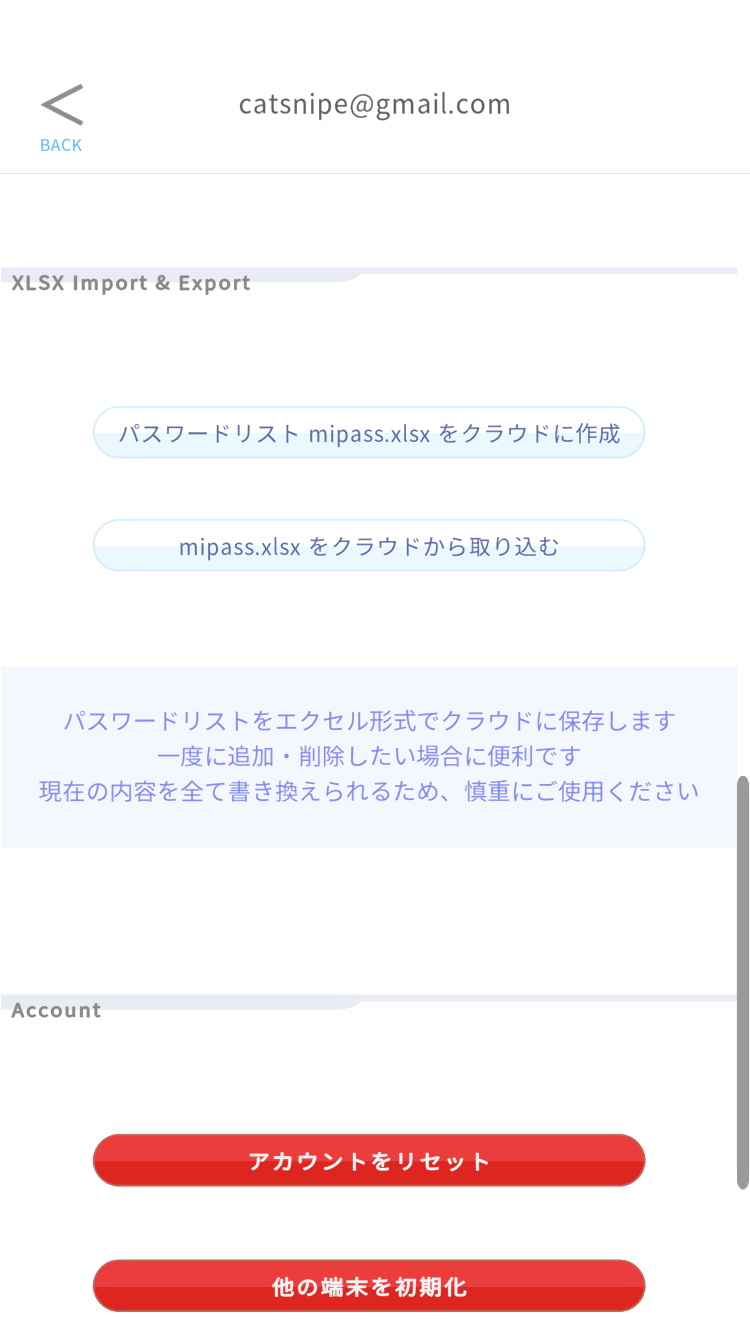
Import / Export (XLSX)
You can export your data as an Excel (XLSX) file and import from the same format —
useful for migrating from another password manager or reviewing a backup.
Caution: Exported XLSX files are unencrypted plain text.
Delete the file once you are done with it.
Entry limit
You can store up to 50 entries.
Staying Safe
Choose a long, hard-to-guess offline password and never forget it — we cannot recover it.
Your data is always kept on the device as well; you can recover from it even if your cloud is unavailable.
Exported XLSX files are plain text — handle them with care.
Also use your device's own screen lock (PIN / biometrics).